

Instagram can take a lot of time and effort to perfect, sometimes it can take months or years to really grow. As with anything in life, you see the rewards that equate the amount of time you put into it. But I have some tips to help you skip the repetitive tasks and head straight to the important parts.
If you’re interested in learning more about Instagram and how to be successful on it, you can read more of my posts:
Use text replacement shortcuts
If you have a set of hashtags you use and customise for each post, you can save yourself a lot of time by assigning them a short cut in your keyboard settings. For example, whenever I type bkst on my phone, my keyboard autocorrects it to list out my hashtags. This is a real time saver and stops you have to copy and paste these tags from your notes page each time you post.
I would advise adding in more post relevant hashtags too and mixing it up a bit each time, but this is a good base.
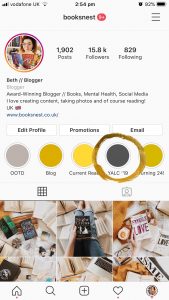
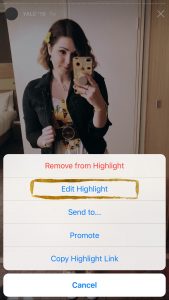
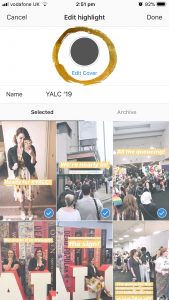
Upload Highlight cover images without adding them to your story
I regularly see users announcing on their Story that they’re redoing their Instagram Highlights and adding in new cover images. But did you know you don’t actually have to upload these photos to your Story for them to be added to your highlights? I’ve listed out the instructions below to do this.

Find new accounts to follow by looking at the suggested tab
Find an account you already follow and really like the style of photos of, then head to their follower count and you’ll see a new tab called ‘suggested’. This tab will show you accounts that Instagram thinks are similar to this one. It’s an easy way to find new users to follow that post photos you like and want to see on your feed.
Follow hashtags as well as users
If you’re looking to engage new users in your account and encourage more followers, then follow a relevant hashtag. This will show you photos from accounts you don’t follow, bringing new content to your timeline and allowing you to interact with a wider audience, who will hopefully visit your profile in return.
Bring in more likes to your new posts by replying to and liking old comments
A really quick and easy way to remind users that you’ve just sent out a new post for them to engage with is to like or reply to a comment they left on your previous photo. Head to one of your last few posts and click the little love heart next to the comment, this will let them know you’ve liked it and remind them to check out your profile, where they’ll see a new post.
Channel your engagement into the first hour of your new post being live
Time is engagement when it comes to Instagram, we all know that the more you engage with other users, the more they will engage back. With Instagram, the success of a post is determined within the first hour of it being live, so this is the time you should be finding users to engage with. This could be through replying to comments on your post or finding new accounts to follow/like/comment on and sending them back to your own profile.
Announce new posts on your Story
This is probably a fairly obvious one, but different people see your Story to those seeing your feed posts. By posting a new post to your Story, you’re reminding your followers that you have shared something new. You could also add in a few hashtags that would give you a chance to engage new users and reach a wider audience.
Use a planning app to write out your captions and plan your feed
I use Planoly, but there are a few different apps out there. The benefit of these apps is they will allow you to see what your feed will look like, you can rearrange photos to create the best overall composition. You can also pre-write your captions if you know that you won’t have time on certain days. This really helps me when I know I have some free time, I can bulk write a few out so I’m not left without anything if I don’t have time one day.
I hope these hacks can help you reduce the time you spend doing the little things on Instagram and give you more time to enjoy the platform. If you enjoyed this post, you can share it on Pinterest and Twitter.




This is really helpful 😀
Thanks for the tips 😃
I didn’t know about the text replacement shortcuts, so thank you for saving me a lot of time on that! Although I already knew about the other aspects, this article was an interesting and helpful read. Thank you! ✨
These are all such awesome tips! Thank you so much for sharing, Beth! I’m still a little bit confused on how the text shortcut works, but I’ll be sure to look more into that! It sounds like a real time saver! <3
Ah wow, these tips are super helpful!! Thank you. I especially love the text replacement one, really saves A TON of time 🙂
I love these tips! Thank you.